
How to apply wholesale pricing on Manual Orders or Draft Orders?
It’s important to follow all the steps in the article to apply discounts on a manual order.
| Plan Availability | ✔ Basic | ✔ Professional | ✔ Business |
|---|
Note
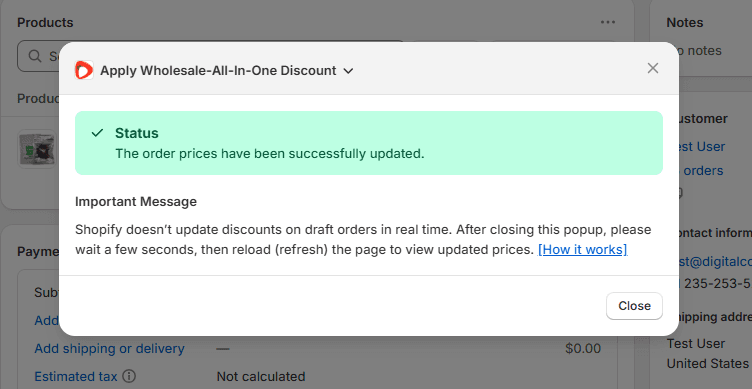
It’s important to follow all the steps in the article to apply discounts on a manual order. If you’re unable to see the discounted prices on the draft order after completing all steps, we recommend refreshing the draft order page. Shopify recently made some updates that require a page refresh for discounts to appear.
Overview
Need to manually process a wholesale order? No worries! Wholesale All In One application has the ability to process manual orders. As long as you have successfully set up the app, creating manual orders will be easy.
In this article, you’ll learn how to create a wholesale order for your customer. As an example, we have a wholesale pricing rule that applies a 25% discount to all products for customers tagged as wholesale. Follow the steps below.
Step 1: Prepare customer to get discounted prices
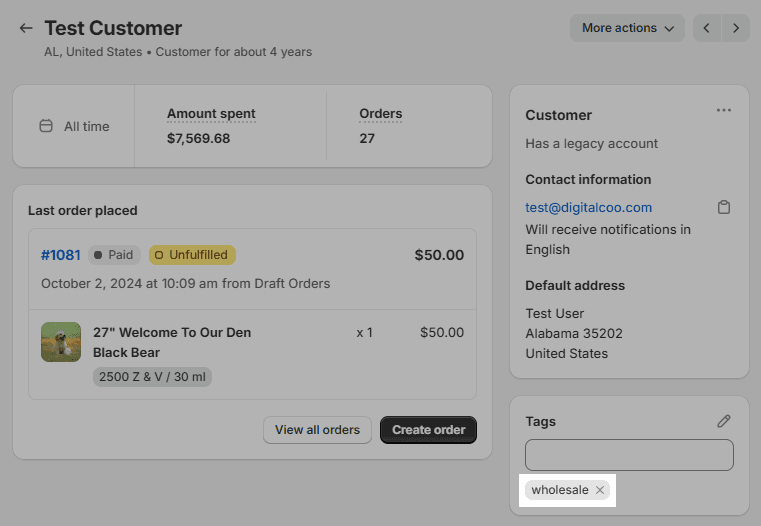
We need to verify that the wholesale customer has the correct tag assigned, matching the pricing rule, before creating the order.
For example, if a 25% discount rule applies to customers tagged as wholesale, ensure the customer has the wholesale tag to receive the discount. Tag names may vary based on your rule configurations.
-
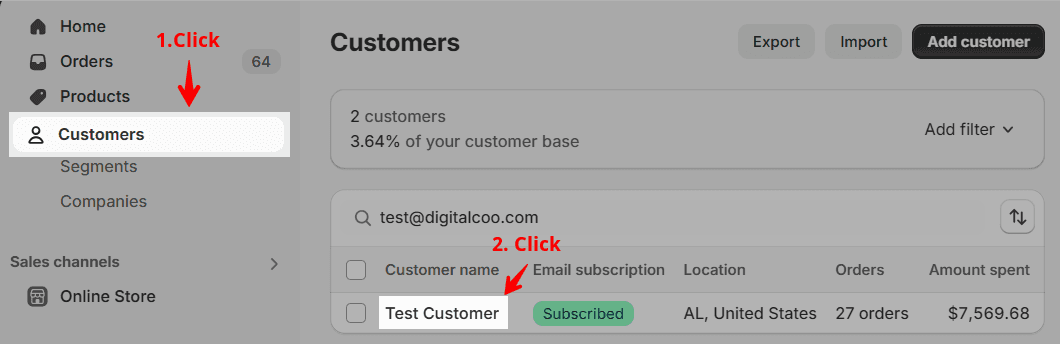
In your Shopify admin, navigate to the Customers section.
-
Select a customer. In this example, we are choosing our 'Test Customer'.
- Ensure that your wholesale customer has a tag that matches the pricing rule. If there is no matching tag, add it and save the customer.
Step 2: Create a draft order in Shopify Admin
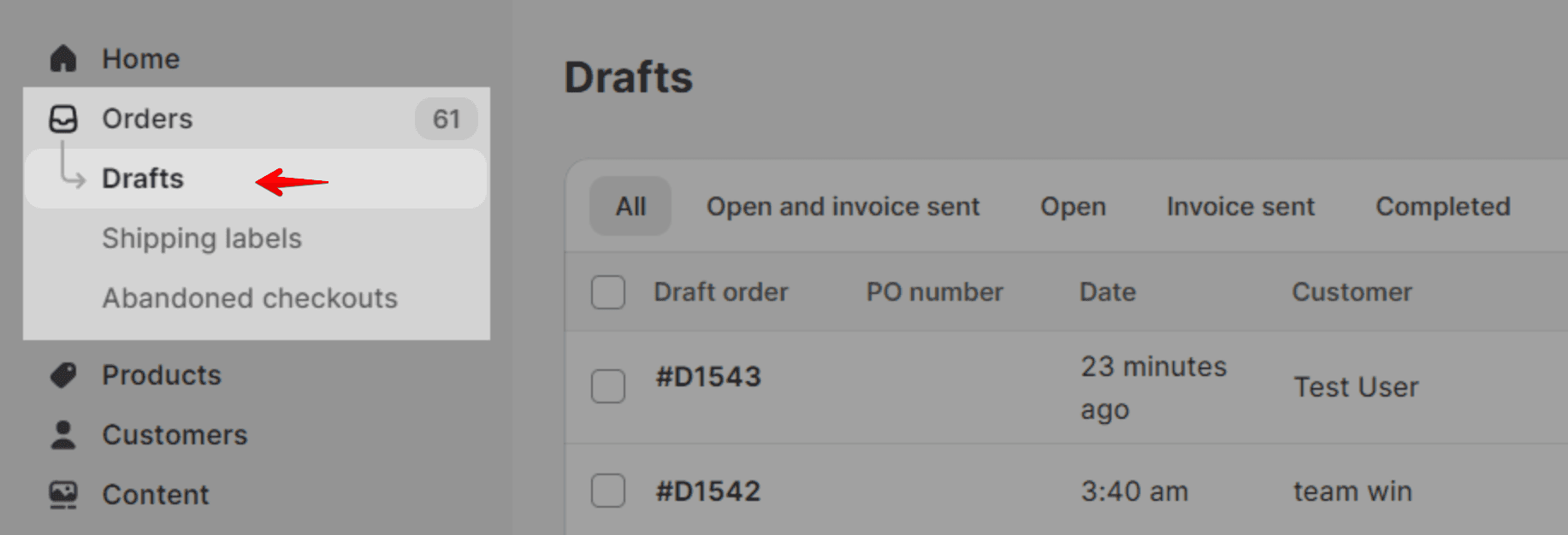
Step 1. Go to Orders and then click Drafts on the Navigation Panel.
Note, This article applies discounts only to draft orders and does not apply to completed orders.
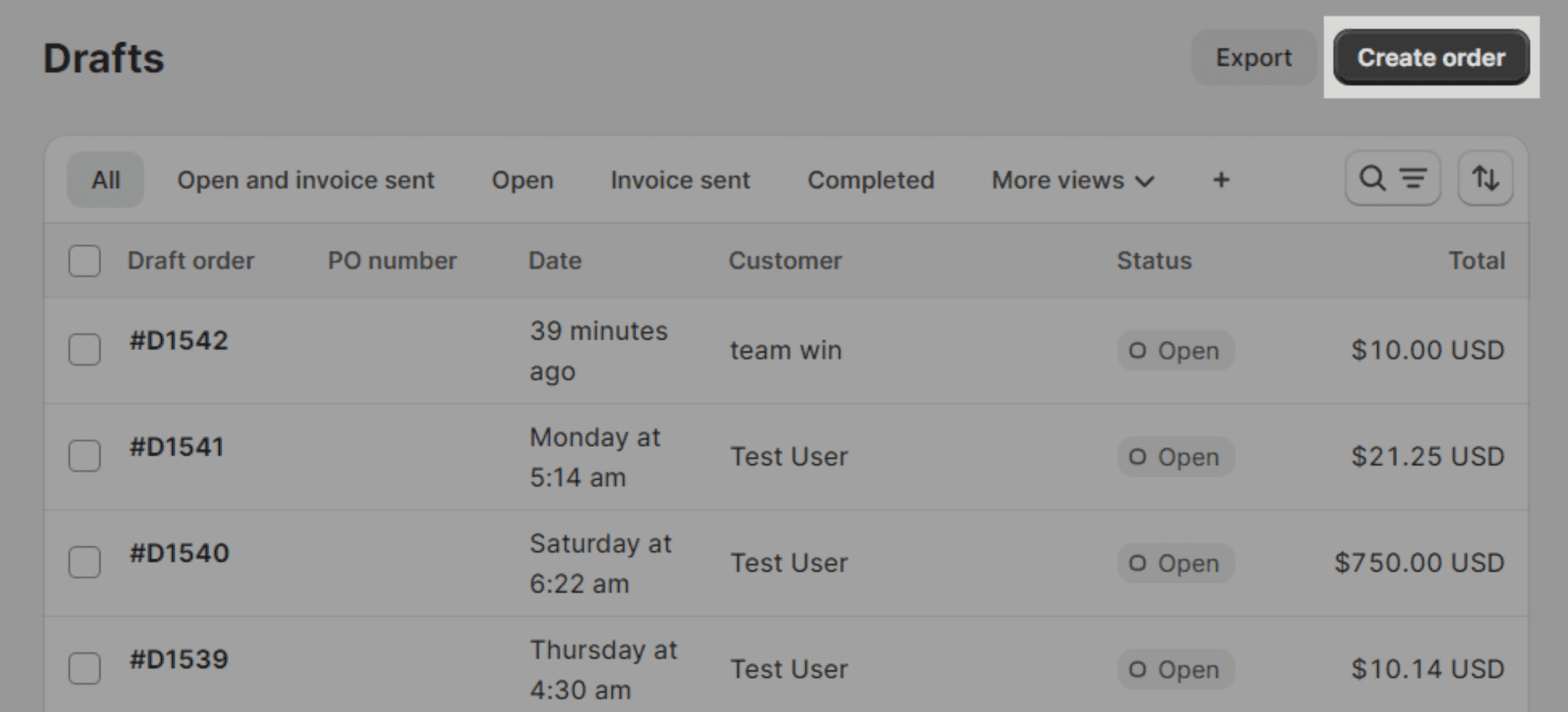
Step 2. Click the Create order button.
Step 3. Click Browse products.
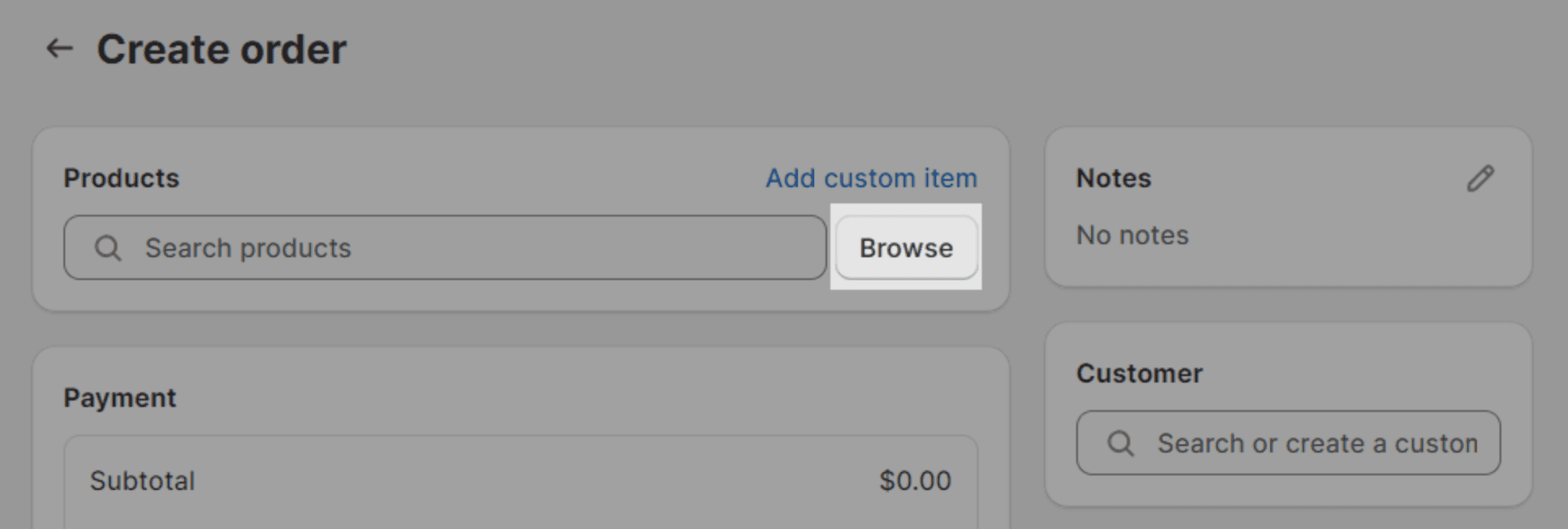
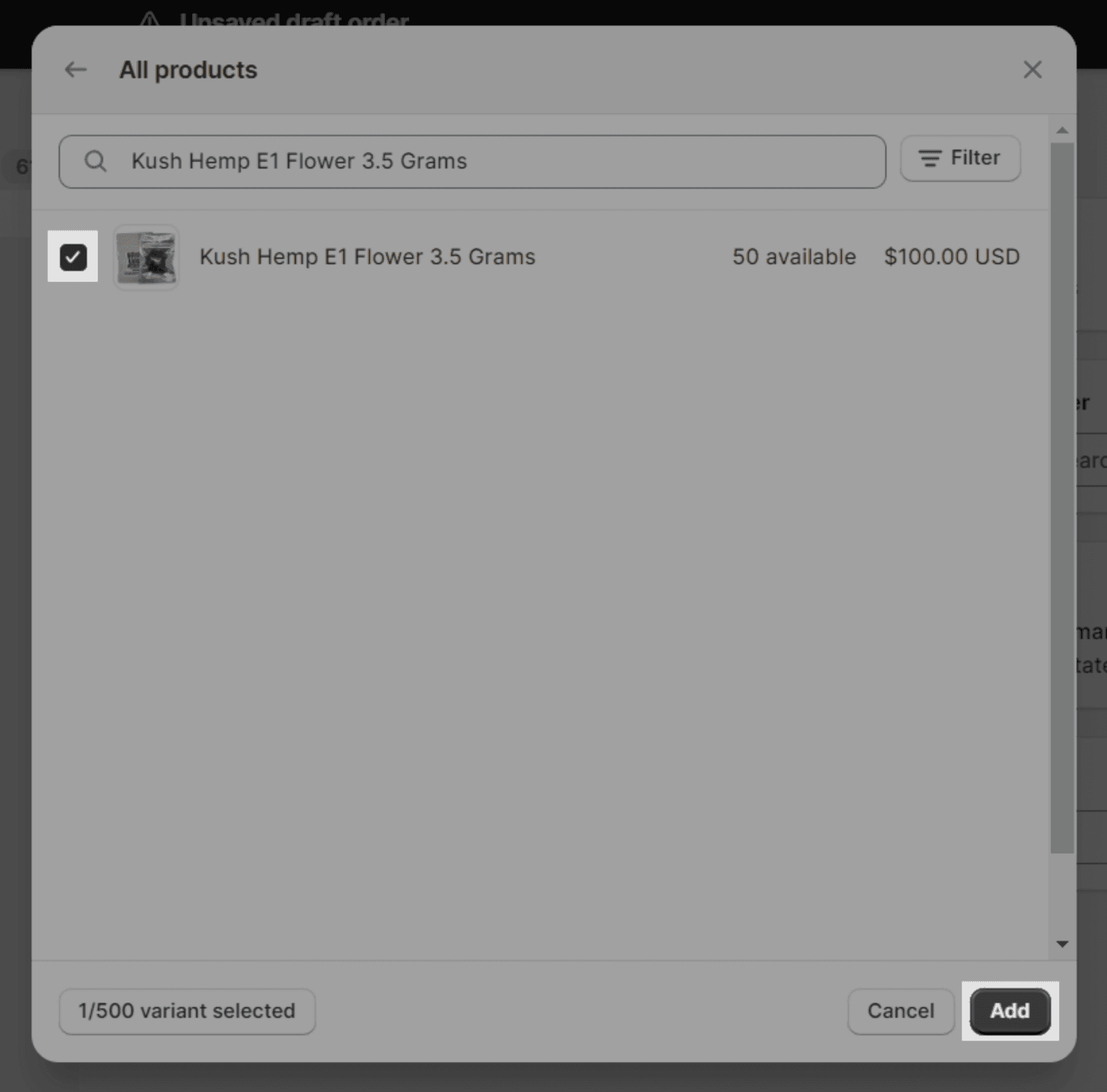
Step 4. Enter the name of the product in the Search field and check its box when it populates. Then click Add to order.
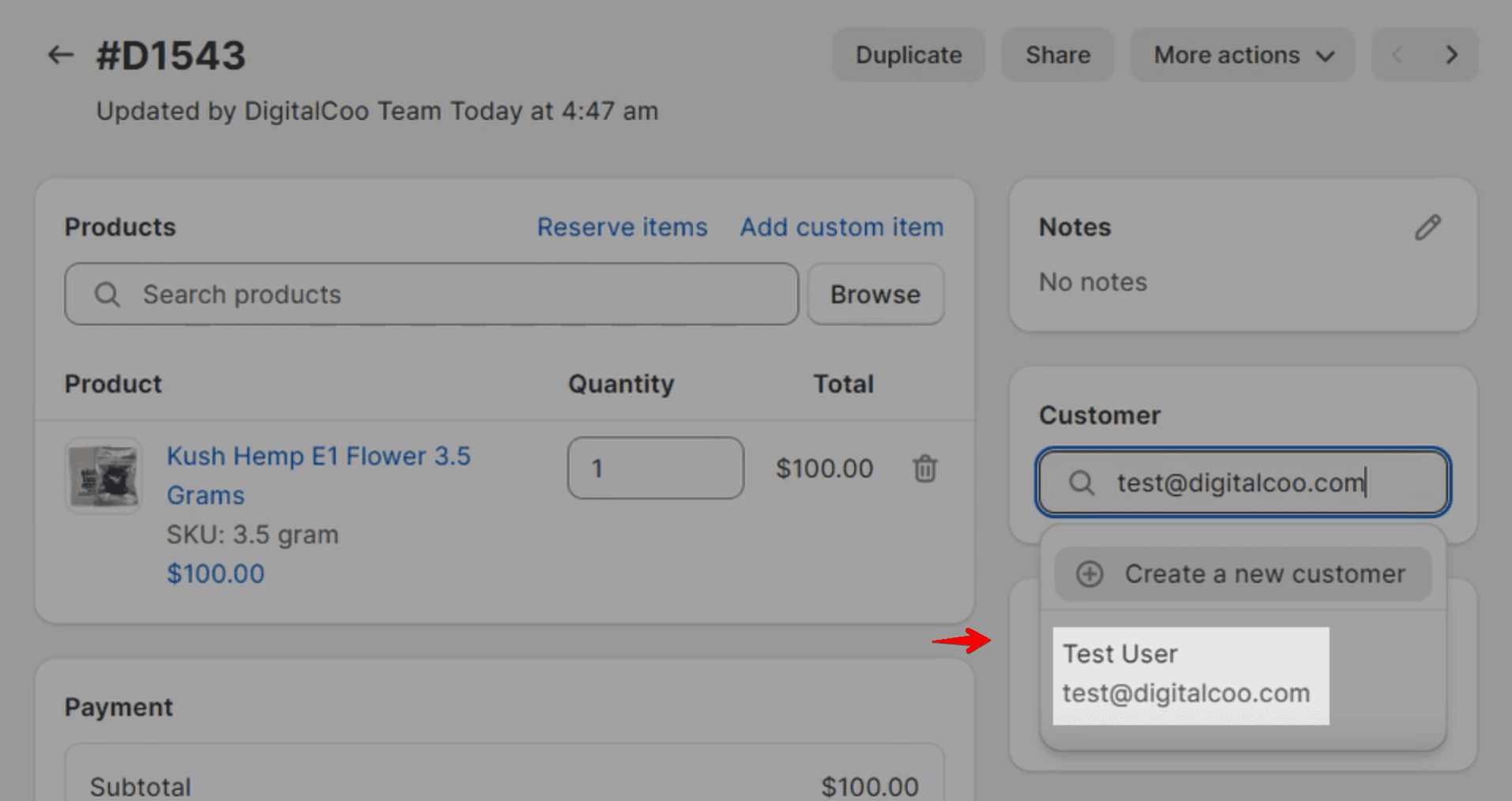
Step 5. Click on the Search customers field and choose the customer from the list. You can also create a new customer if the customer is not yet on the list.
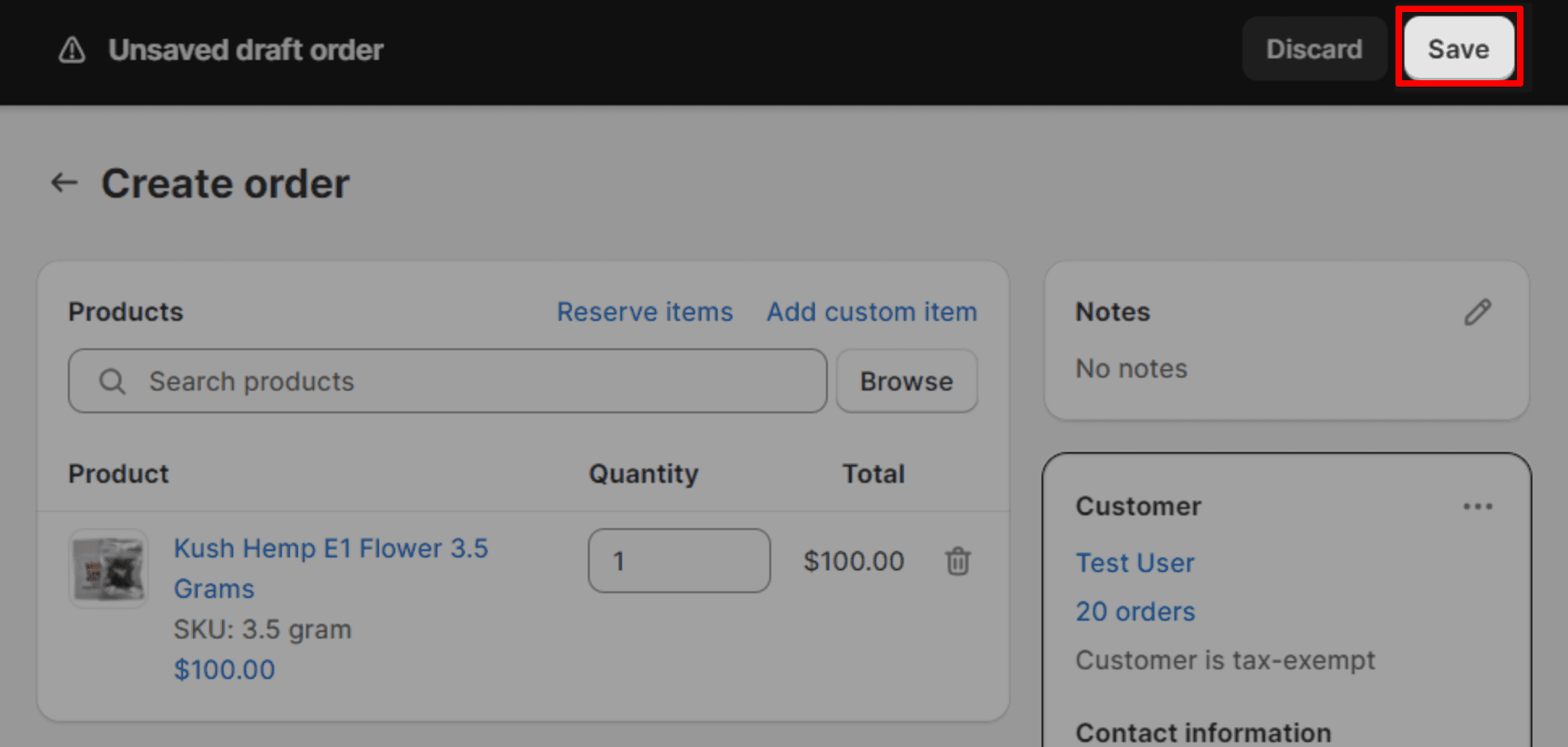
Step 6. Click Save.
Step 3: Apply discount
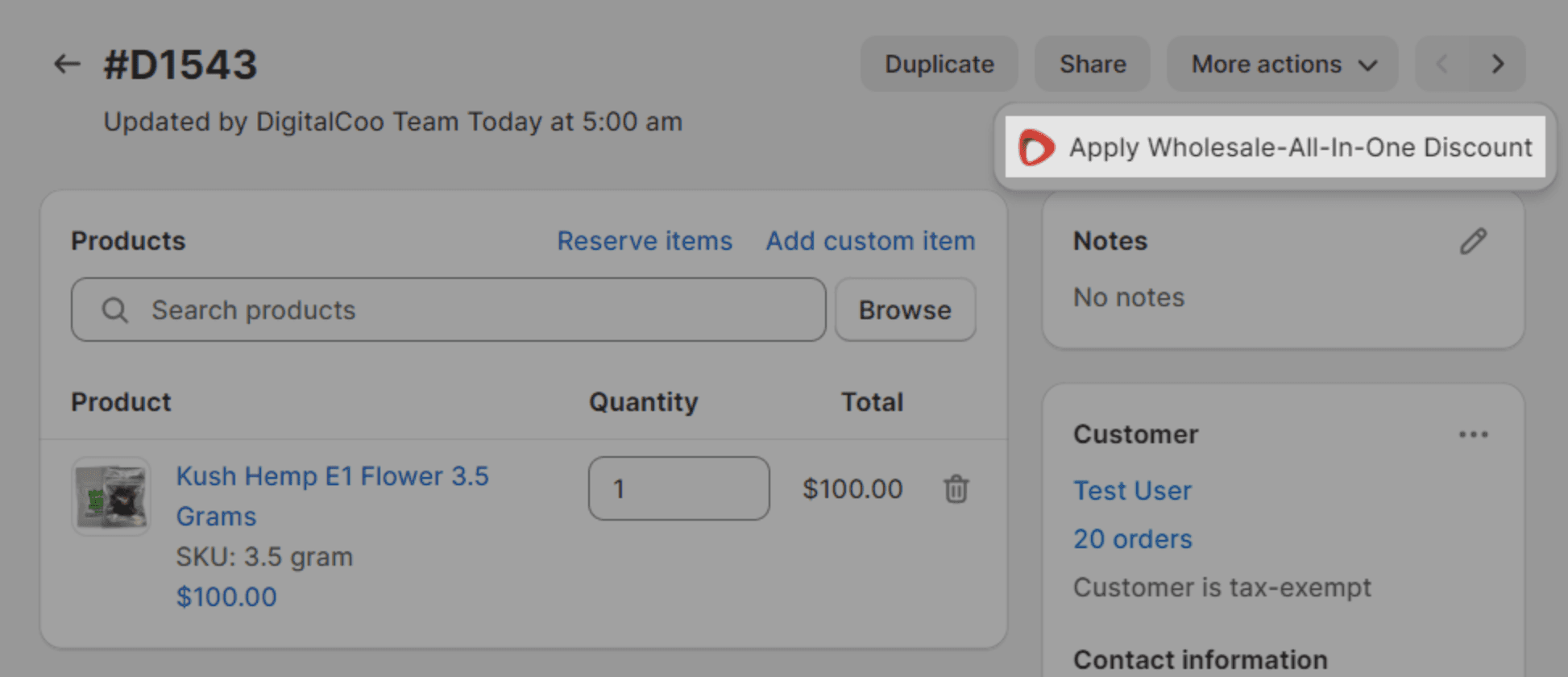
Step 7. Click the More Actions drop-down arrow and choose Apply Wholesale-All-In-One Discount.
Note, the 'Apply Wholesale-All-In-On Discount' dropdown option appears in 'Draft Order' section but not in 'Orders' section'.
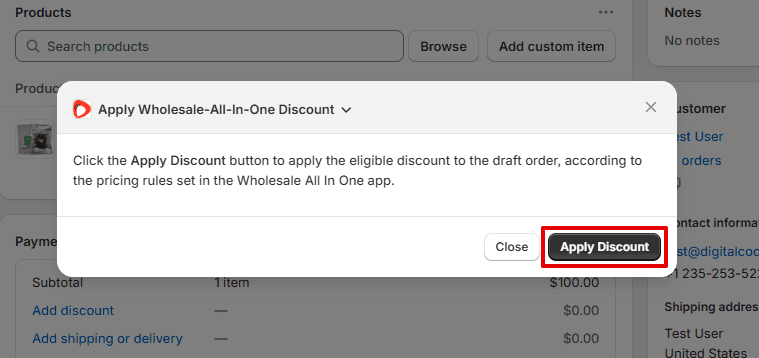
- Click Apply Discount button
- Click Close button to hide the popup.
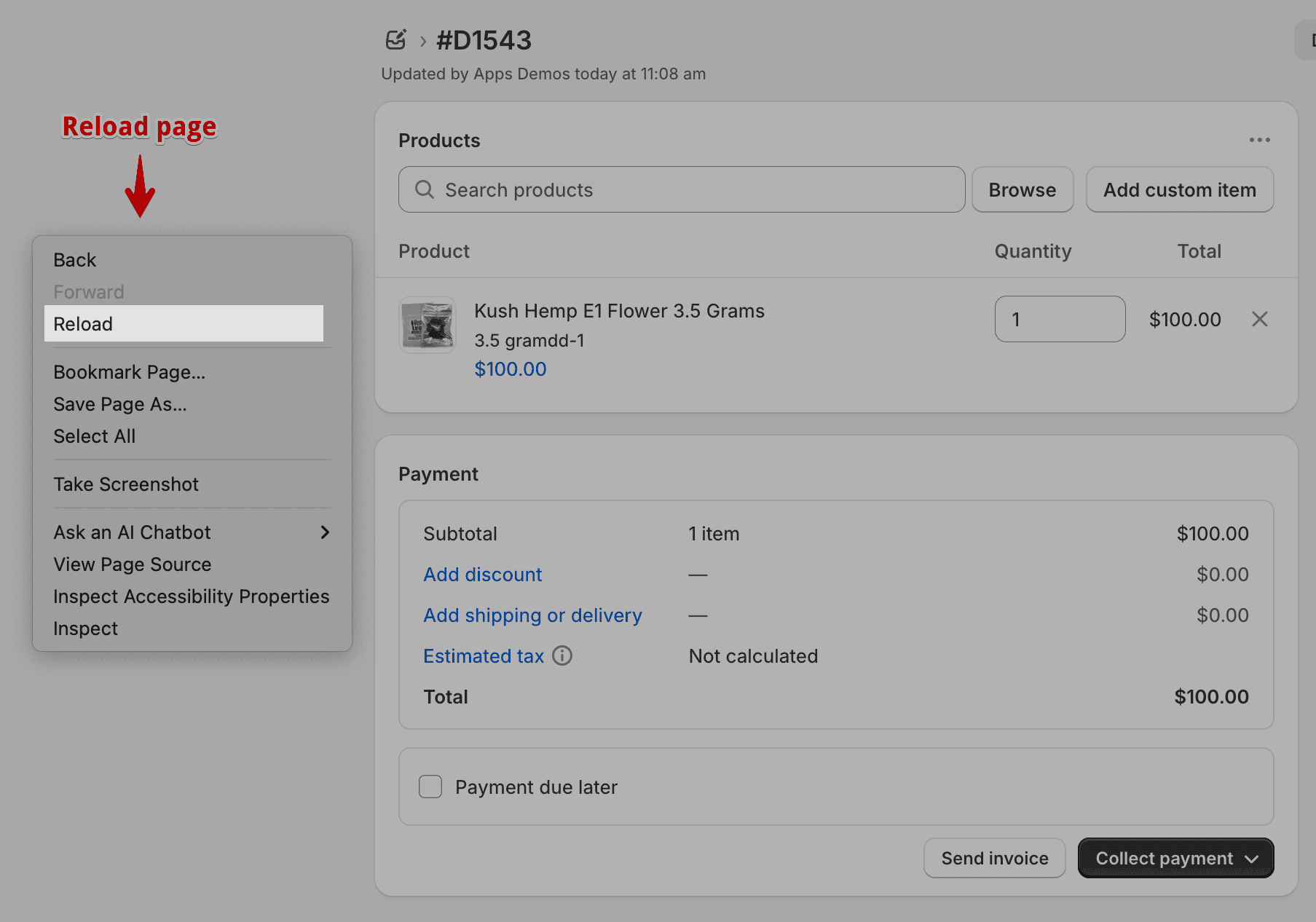
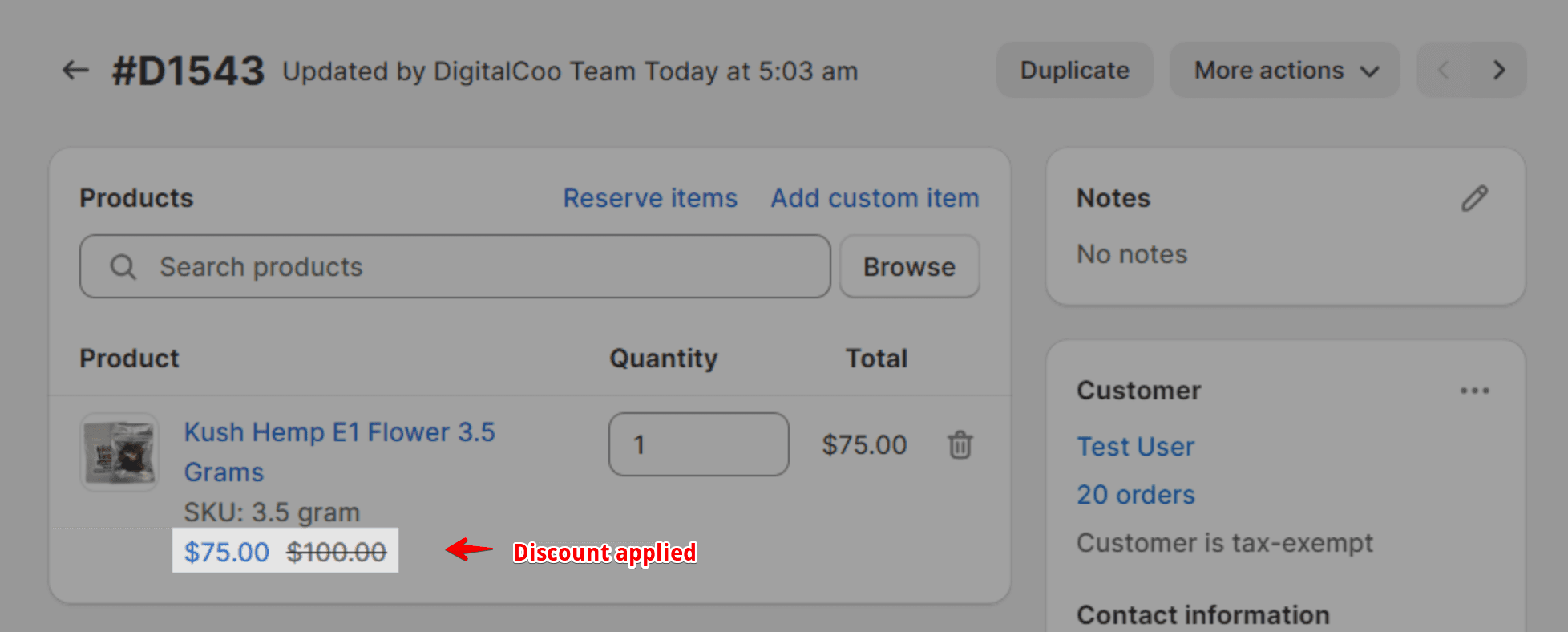
- Right-click to open the options menu, then select Reload, or simply refresh the page. Note: If the discount doesn’t appear, refresh the page again after a few seconds.
- In this example, we have the customer tagged wholesale receiving a 25**% discount**.
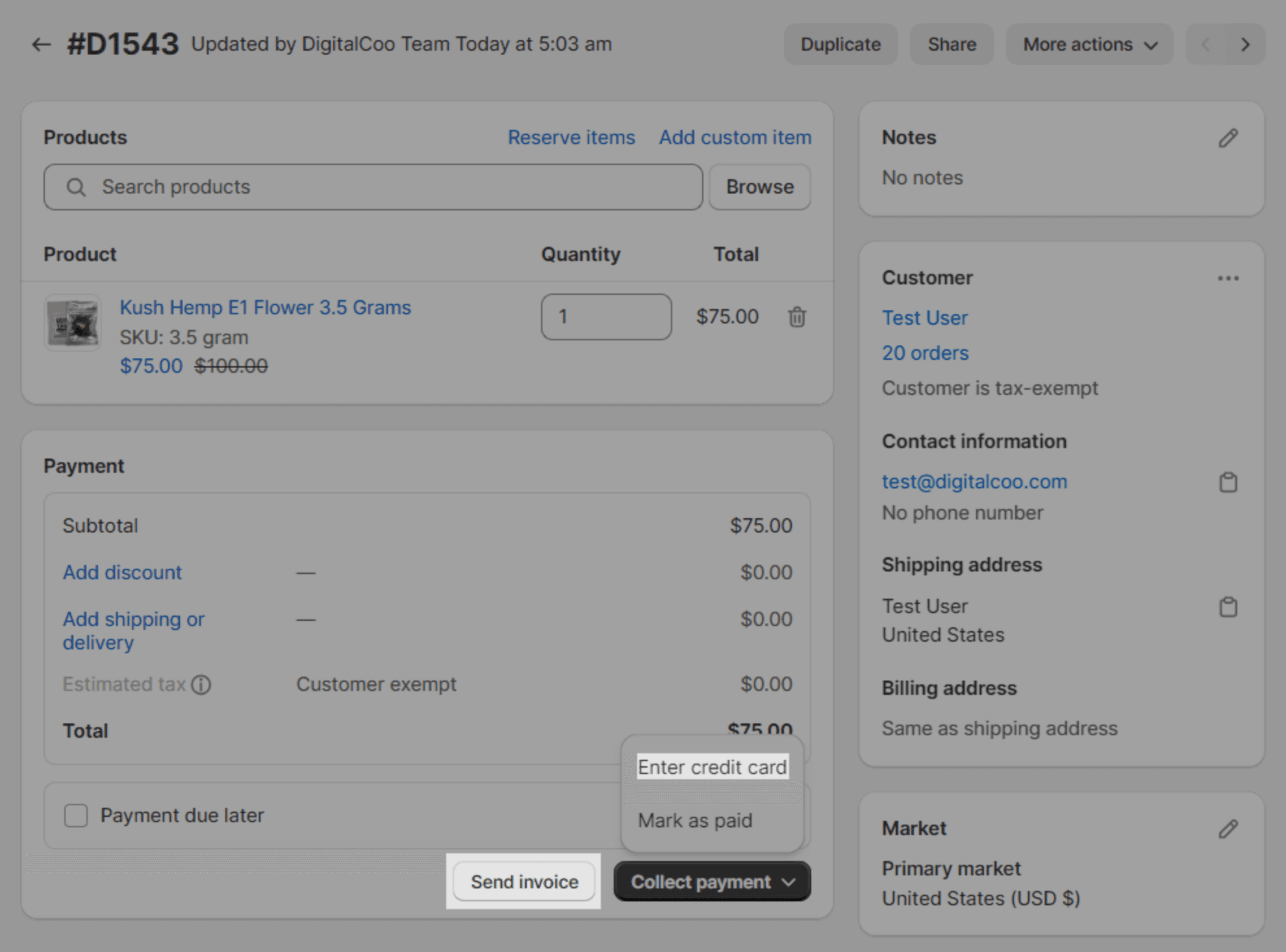
Step 8. (Optional) You can now also send an Email Invoice or accept a credit card to complete the order.
If you have any questions please contact us.
Was this page helpful?