
How to set up first Wholesale Pricing
In this article, we will set up Wholesale Pricing for 'All products'.
| Plan Availability | ✔ Basic | ✔ Professional | ✔ Business |
|---|
Objective
In this article, we will set up Wholesale Pricing for 'All products'. The Wholesale Pricing will apply to only 'wholesale' tagged customers after login.
- While those customers who are not logged in or don’t have a 'wholesale' tag will not get the Wholesale Pricing.
Let’s go through each step one by one:
Step #1: Create Wholesale Pricing Rule
As an example, let's create a Wholesale Pricing rule that applies 10% to 'Entire Store' products but only to 'Wholesale' tagged customers once they are logged in.
- From your Shopify admin, go to Apps and select the Wholesale All In One application
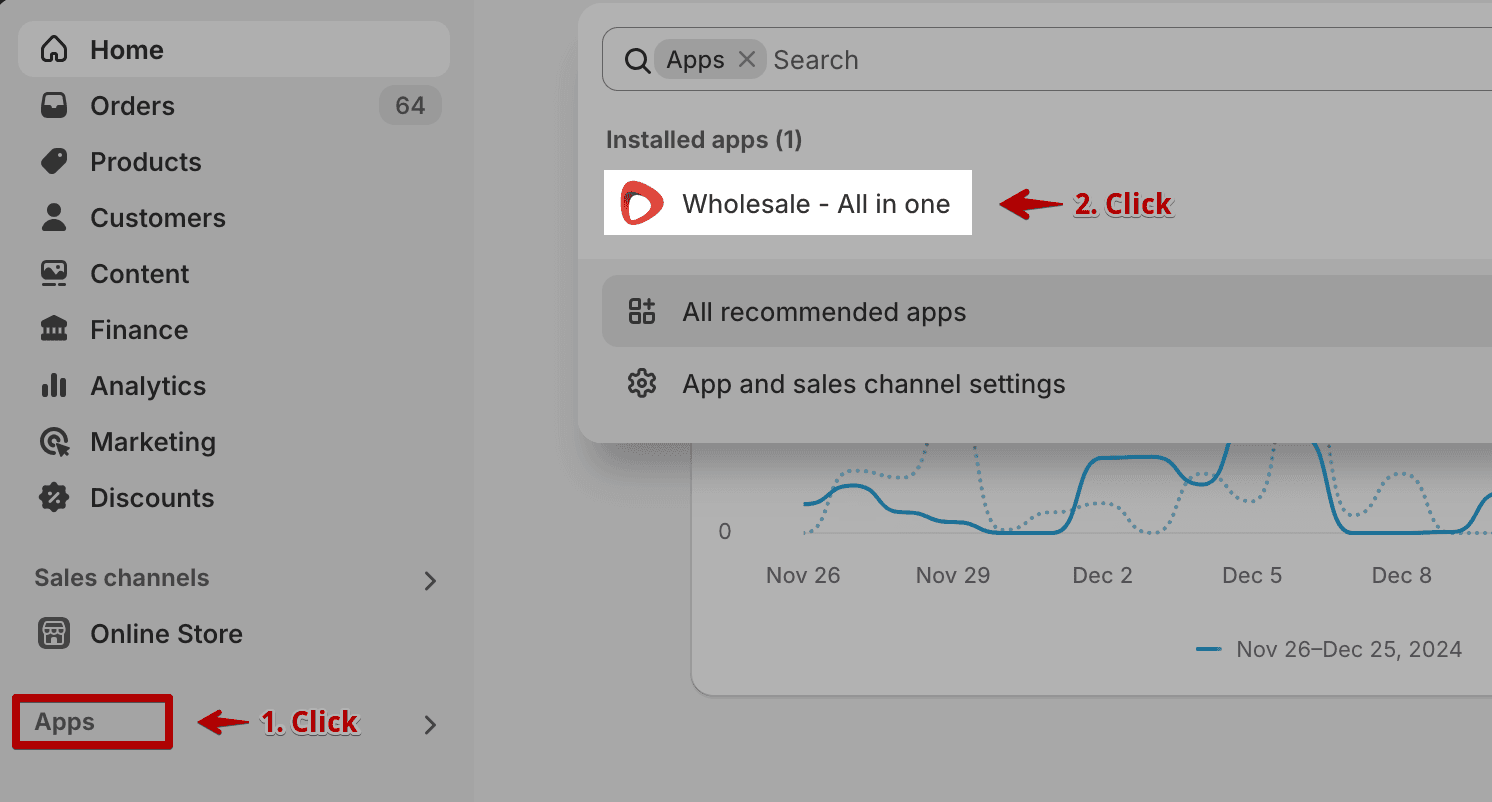
-
Select Pricing and Discounts from the left sidebar navigation.
-
Click the Configuration button under the Common Wholesale Pricing section.
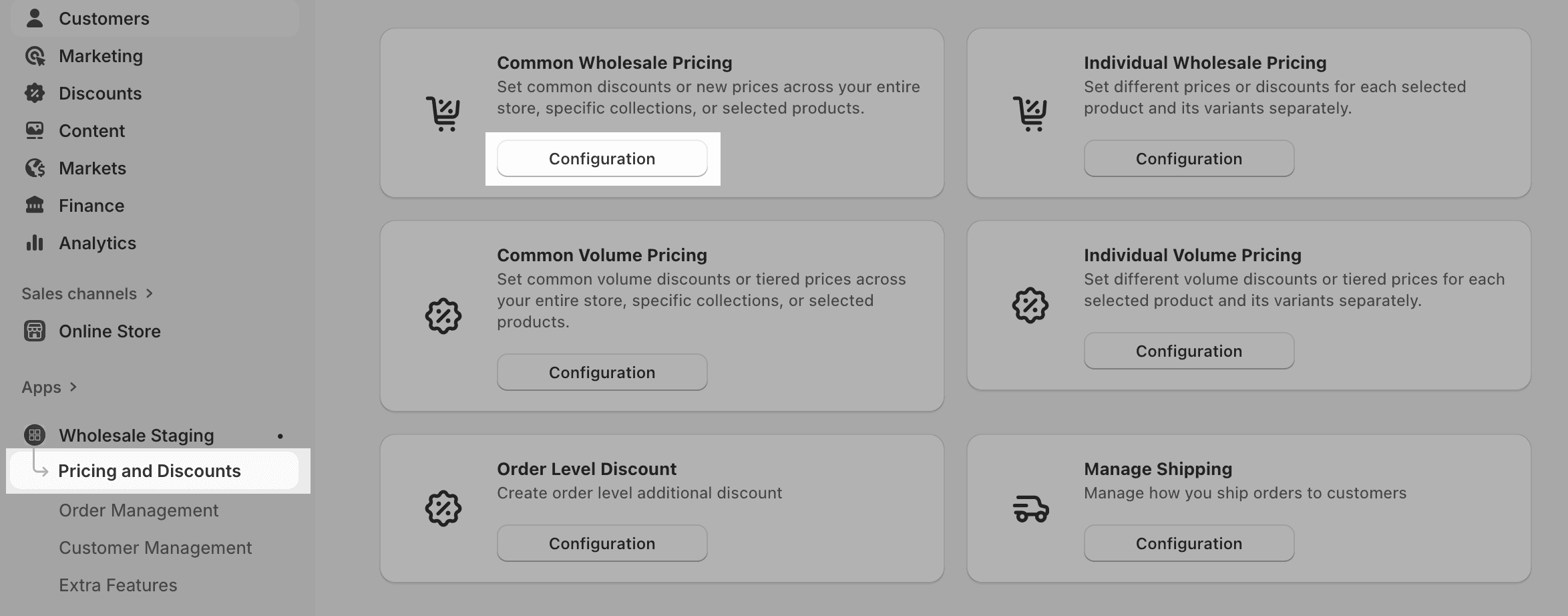
- Click the Create Wholesale Pricing button.

Enter pricing rule name
- Write a title for Wholesale Pricing rule
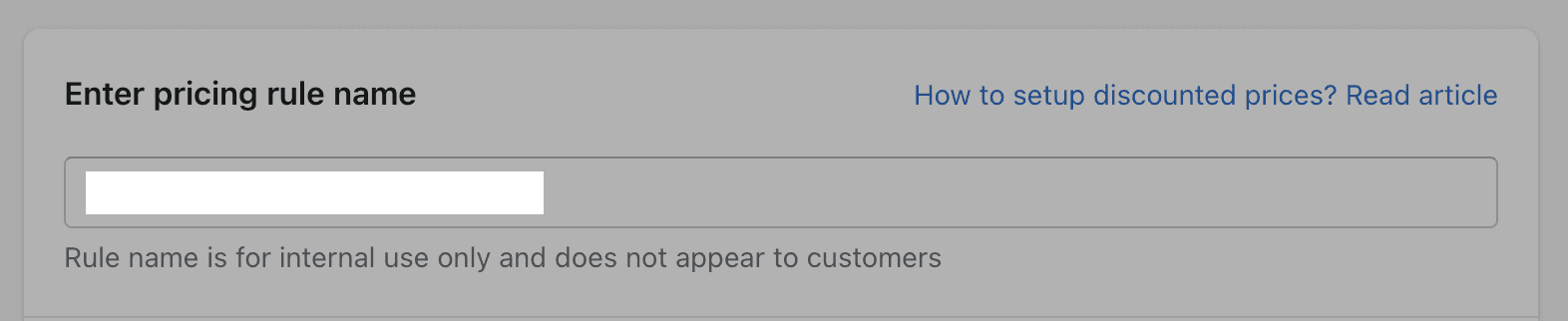
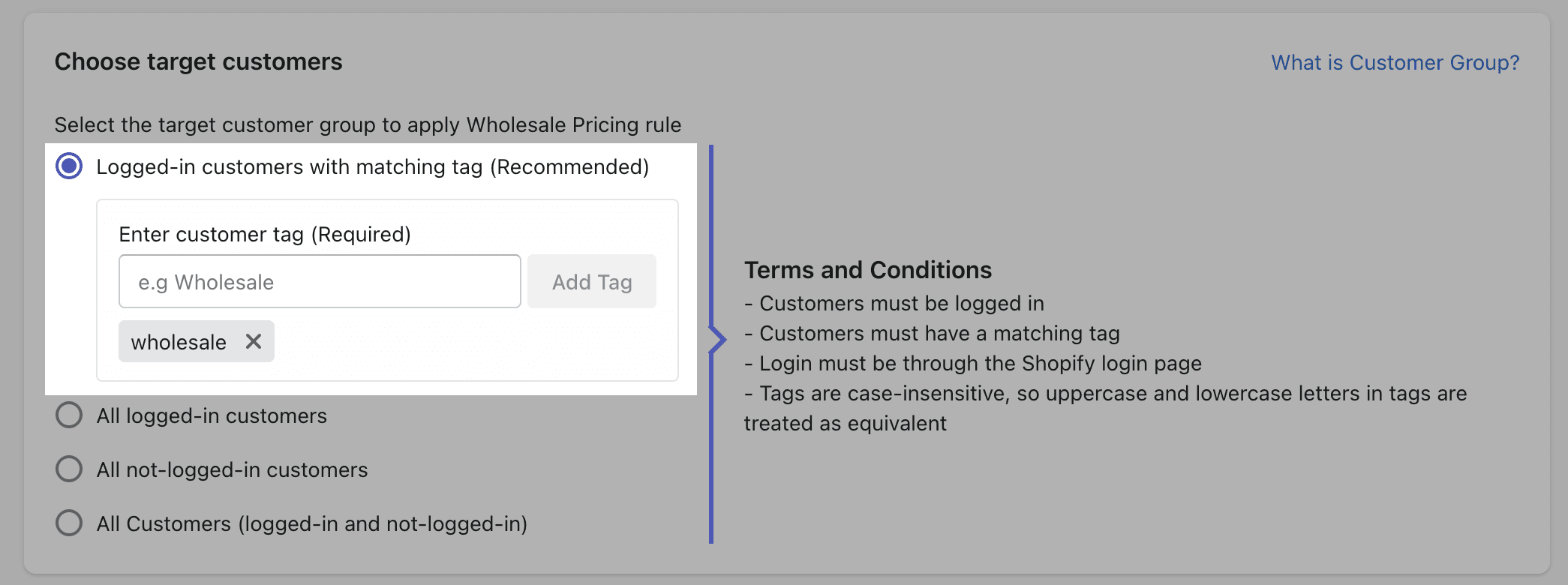
Choose target customers
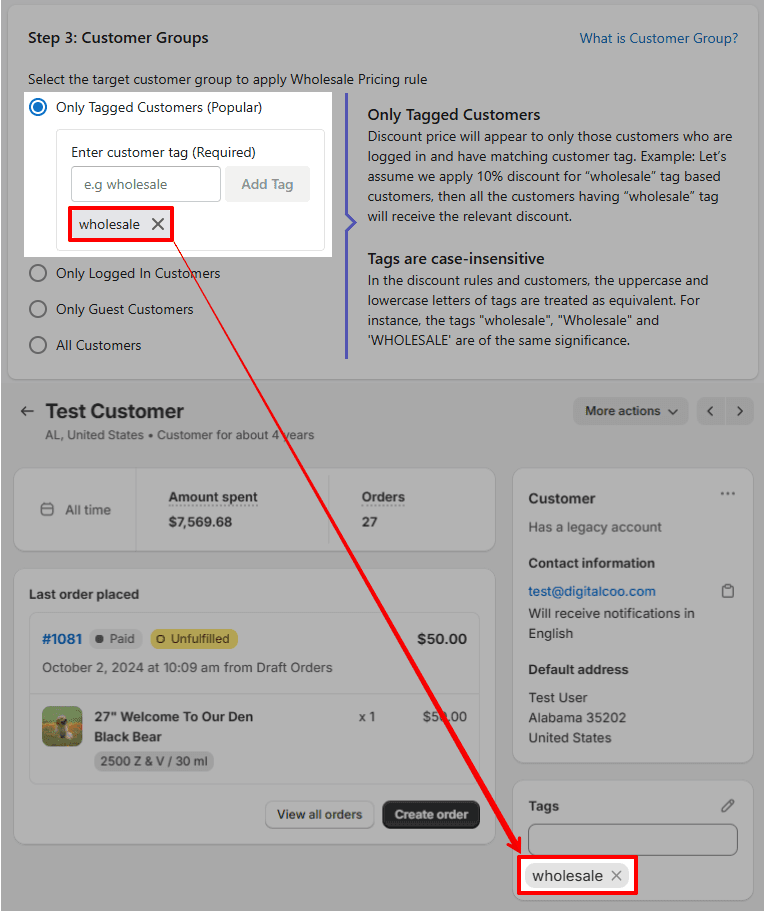
- Select Logged-in customers with matching tag option from 'Choose target customers' section.- Add a wholesale tag in the 'Enter customer tag' section, so only wholesale tagged customers can see the wholesale pricing from this rule. Please note that we will add the same 'wholesale' tag in the customer in the next step.
Choose target products
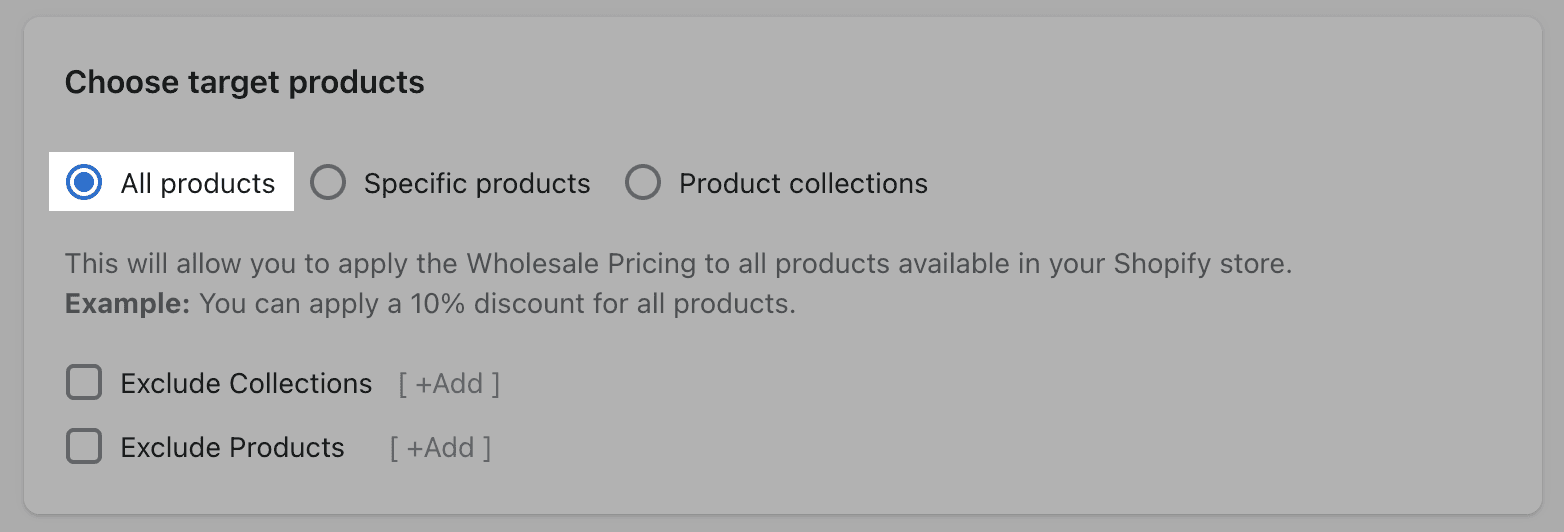
- Select the 'All products' option to apply Wholesale Pricing.
Note: In this example, we selected the ‘All products’ option. If you want to apply a common discount to specific products or collections, select the relevant options accordingly.
Apply discount
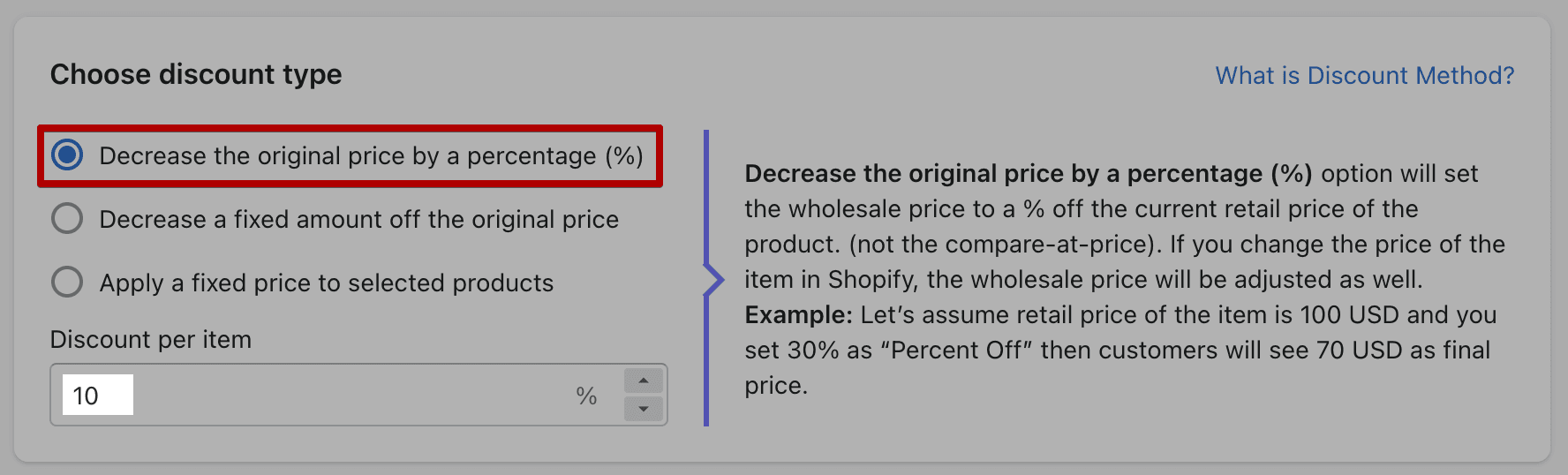
- In this example, choose the Decrease the original price by a percentage (%) option as the discount method.
- Enter the discount percentage value in the Discount per item field. Note, There are three discount options 'Percent Off', 'Price Off' and 'Fixed Price'. You can Learn More_._
- Click the Save button from the top bar.

Step 2: Prepare customers to get wholesale prices
Note: In this article, we're adding the 'wholesale' tag manually to the existing customers for demonstration purposes, but you can also learn other ways to approve wholesale customers. Click Here to read the article.
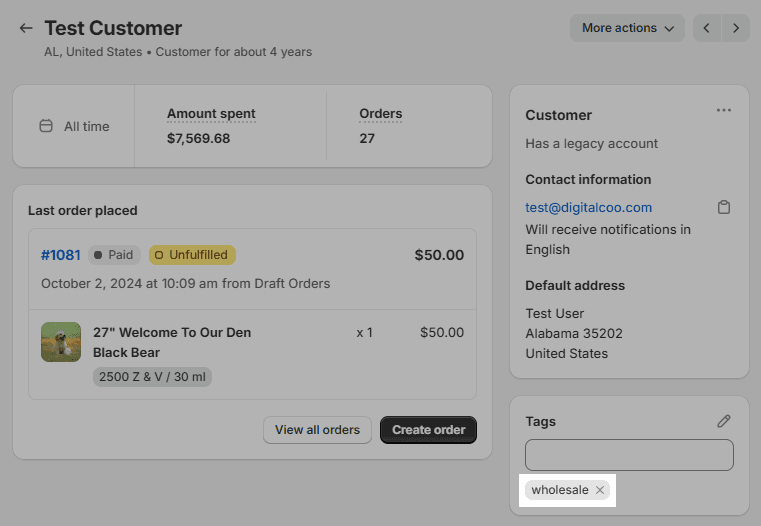
We just need to add a ‘wholesale’ tag to the customer. Then, after login, the customer will automatically get the discount and wholesale pricing based on the matching tag in the ‘Wholesale Pricing’ rule(s).
-
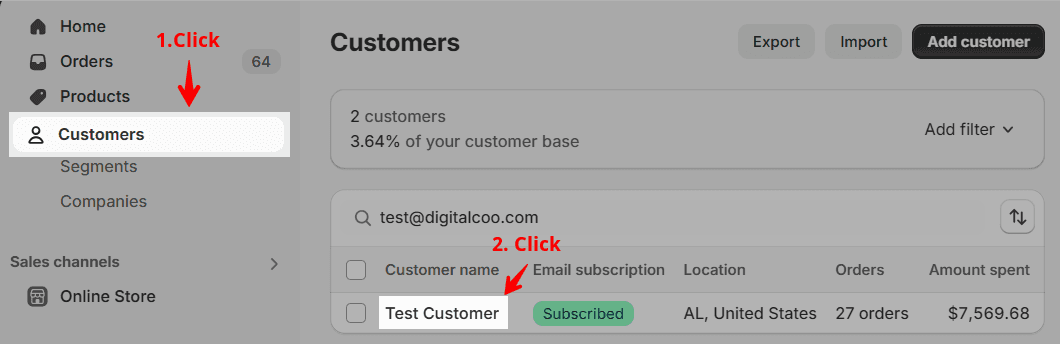
From your Shopify admin, go to Customers and select a customer for whom you want to set up wholesale pricing.
-
In this example, we are choosing our 'Test Customer'.
- Scroll down to the tags section and add the tag wholesale
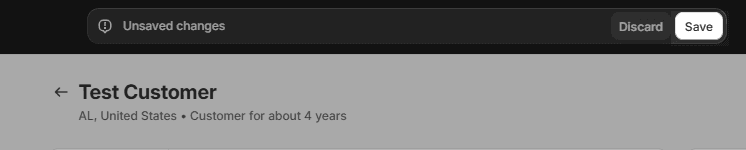
- Click the Save button at the top.
The customer will now see the Wholesale Pricing based on the matching 'wholesale' tag when he logs into your website.
Note: Please take note that you must be very careful in typing the tags for the customer. Make sure that you type it exactly the way it is spelled in the Wholesale Pricing rules created. The tags are case-insensitive that means you can enter them in uppercase or lowercase letters.
- That's all.
Got a question? Please write an email, Contact US
Was this page helpful?