
How to setup shipping rule
In this article, we will set up Wholesale Shipping for specific customers.
Objective
In this article, we will set up Wholesale Shipping for specific customers. The Wholesale Shipping will apply only to 'wholesale' tagged customers after logging in at the checkout page. Customers who are not logged in or do not have the wholesale tag will not receive wholesale shipping.
Let's go through each step one by one:
Note: To offer different shipping charges to different wholesale customers, you can create separate Wholesale Shipping rules with different tags for special customer charges.
Step #1: Create a Wholesale Shipping Rule
As an example, let's create a Wholesale Shipping rule that applies a $10 shipping fee to 'Wholesale' tagged customers once they are logged in, when their cart total is greater than $100.
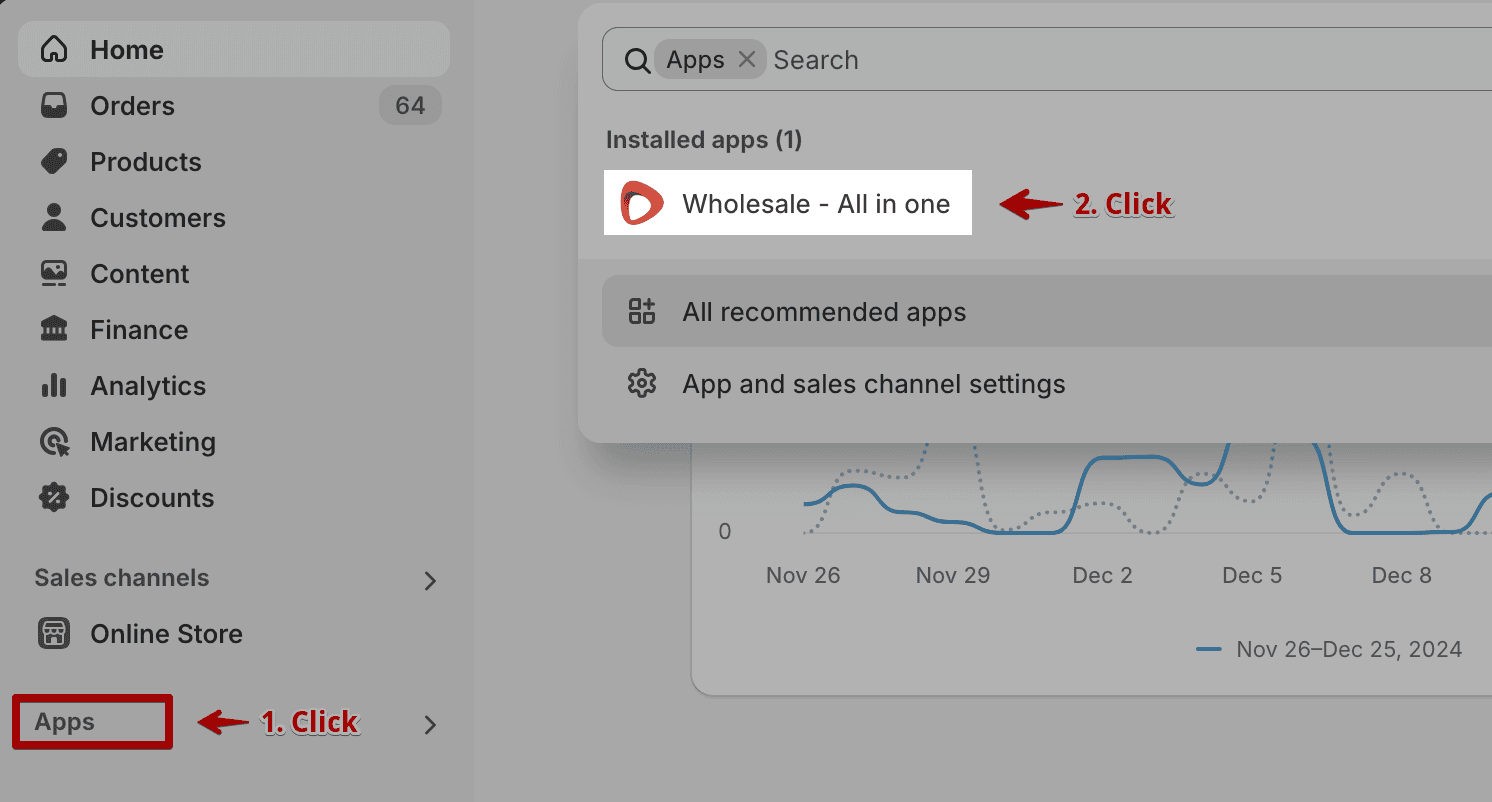
- From your Shopify admin, go to Apps and select the Wholesale All-In-One application
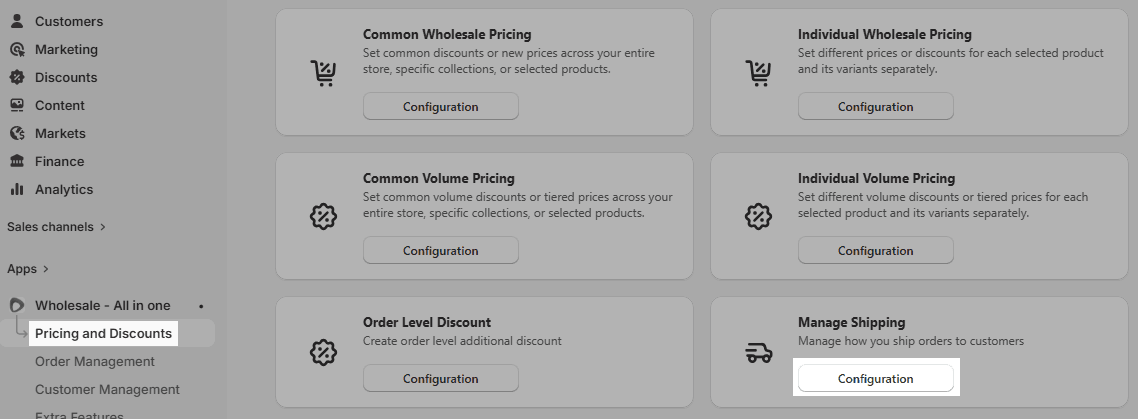
- From Wholesale All In One, Select Pricing and Discounts from the left sidebar navigation.
- Click the Configuration button under the Manage Shipping section.
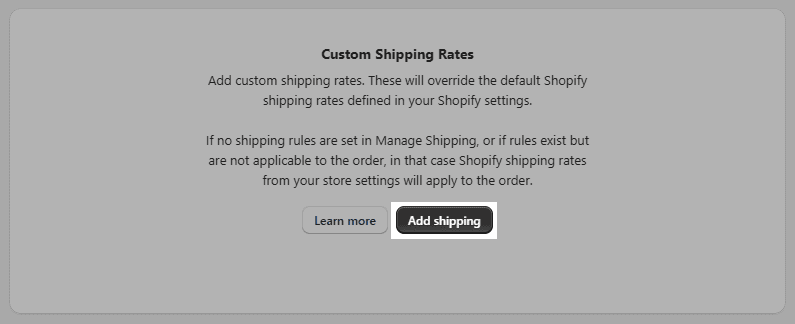
- Click on the Add Shipping button.
1. Wholesale Shipping Title
- Create a title for the Wholesale shipping rule
- Write a message for the Wholesale shipping rule, which will appear on the shopping cart page once applied.

2. Target Customer Selection
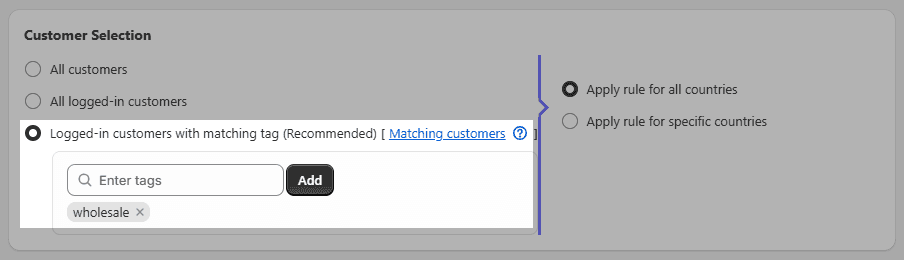
- Select the 'Logged-in customers with matching tag' option from the Customer Selection section.
- Add a wholesale tag in the Enter tags section, so that only wholesale tagged customers can avail of the wholesale shipping charges from this rule.
Note: We will add the same wholesale tag in the customer in the next step.
You can learn more about others option in "Various customer selection" section.
3. Custom shipping charges
- Select Cart Total Amount (Subtotal) option.
- Add shipping charges.
- Set minimum cart total amount.
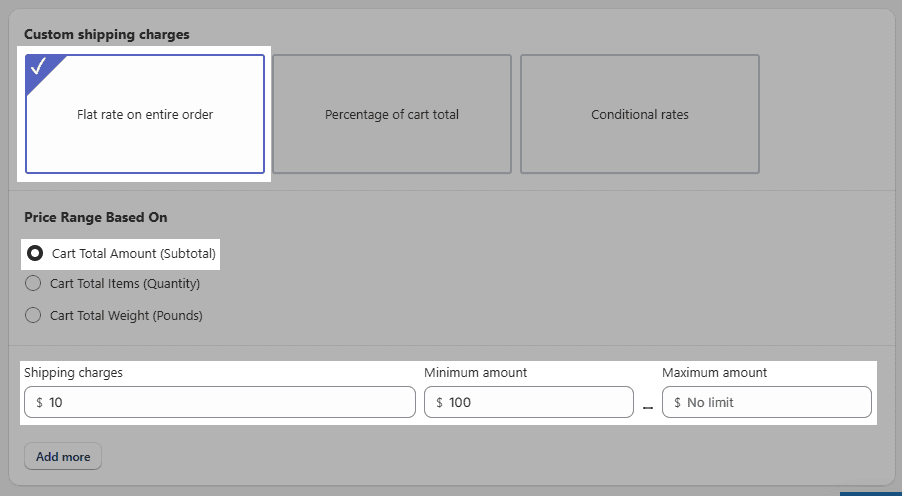
You can learn more about other options in the "shipping rates type" section.
- Click the Save button.

Step 2: Prepare customers to get wholesale app shipping
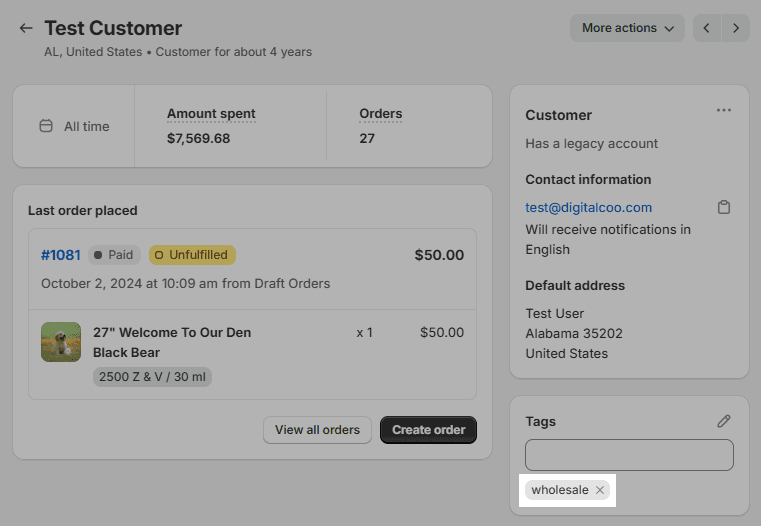
We just need to add a 'wholesale' tag to the customer, and then the customer will automatically receive wholesale shipping based on the matching tag in the 'Manage Shipping' rule(s).
-
From your Shopify admin, go to Customers and select a customer for whom you want to set up wholesale shipping.
-
In this example, we are choosing our Test Customer.
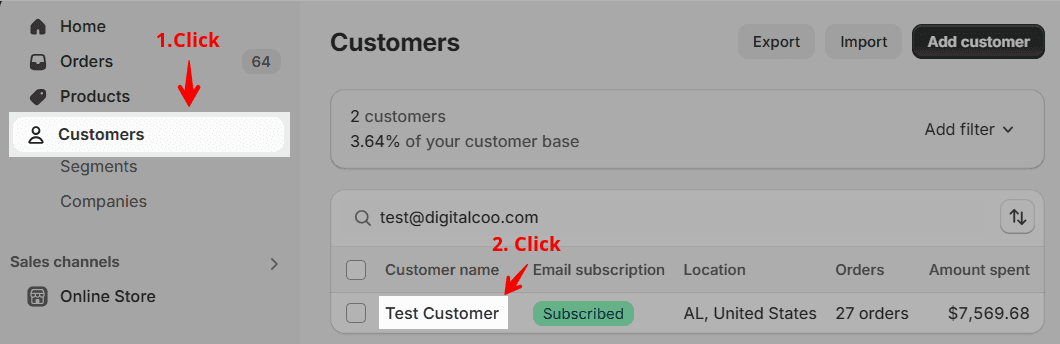
- Scroll down to the tags section and add the tag wholesale.
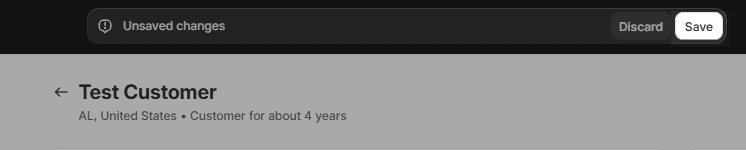
- Click the Save button at the top.
Once a customer logs into your website and visits the checkout page, the wholesale shipping option will appear as long as the matching 'wholesale' tag is present in the customer's account.
Was this page helpful?